

Use n8n YouTube idea research to build a gaming topic shortlist before you write a script. The Hype community node returns the top 10 YouTube gaming trends from the last 30 days, with views and content item counts behind each topic. The downloadable workflow turns that response into individual research rows on self-hosted n8n, with no API key required.
I recommend starting with a shortlist you can review. A topic earns a place in your production plan when you can connect the observed interest to a useful video for your own viewers. The workflow below handles collecting and organizing that starting evidence.
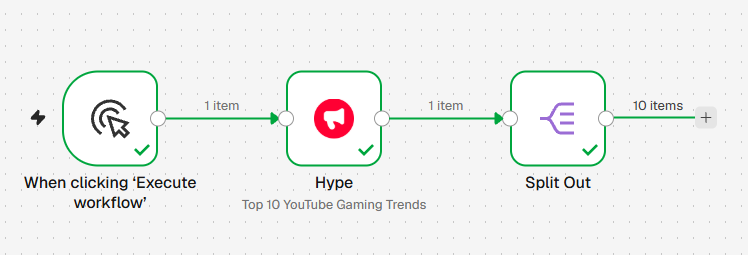
What this automation does ⚙️
- Fetch topics: Hype’s Top 10 YouTube Gaming Trends action requests a rolling 30-day snapshot from Hype.
- Separate the results: Split Out converts the response’s
dataarray into one n8n item per topic. - Prepare research rows: Edit Fields keeps the topic, rank, views, and content item count, then adds a capture time and
To reviewstatus. - Choose the next step: Review the rows in n8n or connect your own spreadsheet, notification, or drafting workflow.
The output is a list of topics, rather than individual video links or transcripts. The current action covers gaming only. It does not select an arbitrary niche, analyze your channel, or generate a finished script. Hype’s website has a separate YouTube gaming trends guide for exploring the category in more detail.
🎯 Use cases and benefits of this workflow
- Plan a gaming channel’s next video: Begin an editorial review with topics that have recorded viewing activity, then narrow them to games and questions your audience cares about.
- Maintain a team research log: Save each snapshot to Google Sheets so an editor can assign topics, add angles, and record a decision beside the source metrics.
- Give a drafting workflow context: Pass a selected topic and its metrics to an AI node, along with your channel brief. Ask for candidate angles while keeping the original evidence alongside the draft.
You get the same fields on each run and can reuse them across workflows. The starter needs neither a YouTube API connection nor an AI service. It lets you test whether this research input is useful before configuring extra services.
Getting started with the Hype n8n integration
You need a self-hosted n8n instance where you have Owner or Admin access and community packages are enabled. This tutorial uses the npm installation route; n8n Cloud does not support installing unverified packages this way. See n8n’s community node installation options.
- Open Settings → Community Nodes in n8n and choose Install.
- Enter
@hype-ad/n8n-nodes-hypeas the npm package name. - Review the community-code notice, accept it if you want to proceed, and select Install.
- Open a workflow, add a node, and search for Hype. If it does not appear after installation, restart the instance and reload the editor.
- Select Top 10 YouTube Gaming Trends. No credential setup is required. Leave Email empty unless you want integration updates.
These steps follow n8n’s GUI installation guide. The package and action were checked against the published @hype-ad/n8n-nodes-hype, on November 16, 2026. The node also sends your n8n instance identifier and, when available, workflow identifier with the request.
📥 Download the n8n workflow (JSON)
Import this four-node starter: Manual Trigger → Hype → Split Out → Edit Fields. It runs when you click Execute workflow and ends with research rows in n8n. Google Sheets, AI drafting, and scheduling are optional additions described below.
Download the n8n workflow (JSON)Install Hype first, then open the workflow menu (⋯) and choose Import from File. The file contains no credentials or sample results. n8n documents the import controls in its workflow import guide.
Run the workflow and build your shortlist
1. Inspect Hype’s response
Click Execute workflow, then open the Hype node’s output. A successful response has status: "ok", days: "30", a data array of up to 10 topics, and a response-level contentItemsTotal. Each topic contains name, contentItems, views, andrank. If the request fails or the array is empty, resolve that before adding downstream steps.
Treat these as metrics from Hype’s tracked gaming dataset. They are not counts of every YouTube video or estimates of how many views your own upload will receive. Rank orders the returned topics by views; it is not an opportunity score for your channel.
2. Split the topic array into individual items
In Split Out, set Field to Split Out to data, set Include to All Other Fields, and leave Destination Field Name unset. The download uses this setup so each topic row keeps the response-level days, contentItemsTotal, timestampResponse, and status alongside its topic fields. This is the array-to-items behavior described in n8n’s Split Out documentation.
3. Check the research row mapping
The final Edit Fields node uses these mappings. If you build it by hand, choose Manual Mapping and use Expression mode for the response and topic values. Use a fixed string for the review status. After Split Out, each row comes from one object inside data; the response-level values are copied into every item by the Include setting, so all values can be read directly from $json.
| Output field | Value | Type |
|---|---|---|
| topic | {{ $json.name }} | String |
| rank | {{ $json.rank }} | Number |
| views | {{ $json.views }} | Number |
| contentItems | {{ $json.contentItems }} | Number |
| days | {{ $json.days }} | String |
| contentItemsTotal | {{ $json.contentItemsTotal }} | Number |
| timestampResponse | {{ $json.timestampResponse }} | String |
| status | {{ $json.status }} | String |
| reviewStatus | To review | String |
| Topic | Rank | Views | Content items |
|---|---|---|---|
| video game announcement | 1 | 226,255,222 | 548 |
| video game commentary | 2 | 87,311,849 | 140 |
| video game narrative | 3 | 69,160,578 | 181 |
| gameplay commentary | 4 | 51,996,907 | 117 |
| video game news | 5 | 43,108,461 | 108 |
| roblox gameplay | 6 | 40,065,877 | 93 |
| horror game | 7 | 33,203,128 | 83 |
| survival horror | 8 | 31,697,003 | 52 |
| gameplay mechanics | 9 | 30,173,317 | 62 |
| minecraft gameplay | 10 | 25,469,892 | 29 |
These values describe that response, not a live ranking. It also reported contentItemsTotal: 304. In this endpoint, that field counts the eligible topic entries in the full ranking pool before the top 10 are selected. It does not sum the per-topic contentItems values or report the number of videos across the pool. The updated workflow carries days, contentItemsTotal, timestampResponse, and status into each topic row, so the ranking window and response timestamp stay with the metrics when you save them. For example, the first row’s contentItems: 548 is the count attached to “video game announcement.”
Open the final node’s table view. Each row should contain a readable topic, numeric metrics, response timestamp, and review status. The response timestamp records when Hype returned this snapshot; days: 30 identifies the research window.
Save your YouTube research to Google Sheets
For a shared log, create a sheet with these headers: topic, rank, views, contentItems, days, contentItemsTotal, timestampResponse, status, reviewStatus. Add a Google Sheets node after Edit Fields, connect your Google credentials, choose Sheet Within Document → Append Row, and select the document and sheet. Choose Map Automatically so the incoming names match those headers. See n8n’s Google Sheets row operations for the connection and mapping options.
Test one execution and confirm the sheet receives the same number of rows as the final node. A second execution appends another snapshot, including topics that appeared before. Keep timestampResponse so you can tell the runs apart. Add separate columns for a proposed angle, owner, and decision during your editorial review.
After that test, you can replace Manual Trigger with a Schedule Trigger. Set a weekly interval and the workflow’s timezone, then publish or activate it using your n8n version’s controls. Weekly capture suits a weekly planning meeting; it does not change Hype’s 30-day window. Consecutive snapshots overlap, so do not add their view counts together to calculate weekly or daily traffic.
Turn a trending topic into a video idea
Start with a topic your audience would recognize. Read views and content item count together: a large view total backed by one item is a different research lead from a total spread across many items. Neither combination establishes low competition or guarantees demand for your specific angle. Topics can also overlap, so adding their totals can count the same underlying content more than once.
For example, suppose your returned topics include Minecraft. This is an illustrative planning scenario, not a claim about today’s top 10. A channel about beginner survival builds could investigate “Which starter base survives the first night with the fewest resources?” The topic gives you a research direction; your own test supplies the video’s value.
- Check relevance: Would your usual viewers want this answer? If the topic serves a different audience, skip it or find a closer fit.
- Inspect the evidence: Use Hype’s topic and content explorer to examine related content. The node itself does not return those video links.
- Define your contribution: Write down what you will demonstrate, compare, or explain using your own footage and research.
- Check timing: Confirm the question will still matter when you can publish. Follow the video idea validation walkthrough before committing to a longer production.
If you add an AI drafting step, pass only a selected row and your channel brief. A useful prompt is:
Using the attached topic row, propose three video angles for a beginner survival gaming channel. For each, give the viewer’s question, a test I can film, and one fact I need to verify. Keep the source topic and metrics unchanged. Label the angles as suggestions and do not predict views or invent supporting statistics.
Review the suggestions against the same criteria. Approve an angle only when you can explain who it helps and how you will deliver it. The broader guide to finding trending topics worth producing explains how to make that decision across niches.
Check your video idea before you film
Open Hype, choose your niche, and see what people already watch before you spend time filming and editing.
Validate my video ideaCheck the output before scheduling
- Hype appears as an unknown node: Confirm the exact scoped npm package is installed on the instance running the workflow, then restart and reload if needed.
- You get one item containing a list: Inspect the Hype output and confirm Split Out targets
data, rather than splitting a topic name or a different field. - The request fails or returns no topics: Check the Hype node’s execution error and service response. Retry a failed request after resolving the reported issue; keep an empty result empty.
- The sheet repeats topics: Append Row keeps each run as a new snapshot. Filter by capture time to review one run, or add deduplication rules if your intended output is a single current list.
Your first useful result is a set of research rows you can trace back to a successful Hype response and one candidate you can justify for your audience. Download the starter, run it once, and make that editorial decision before expanding the automation.
Frequently Asked Questions
- Do I need a Hype API key or YouTube credentials?
- No credentials are required for Hype’s Top 10 YouTube Gaming Trends action. The Email field is optional for integration updates. Google Sheets or AI steps you add later require their own connections.
- Can I change the category, country, or 30-day period?
- The current Hype node has one action: Top 10 YouTube Gaming Trends for the last 30 days. It has no category, country, language, or date-range controls. Use the Hype website to explore other categories separately.
- Can I add daily views from successive workflow runs?
- No. Each run returns a rolling 30-day snapshot, so successive runs overlap. Store the capture time with each result and compare snapshots separately; adding their views would count overlapping activity more than once.
- Does the workflow generate or publish YouTube videos?
- The download creates research rows containing topic names, ranks, views, content counts, a capture time, and a review status. You can connect those rows to other n8n workflows, but scripting, video generation, and publishing require additional nodes and review.